Clocking in
When you begin a Visit, you will need to clock in to indicate that you have arrived and the Visit is in progress.
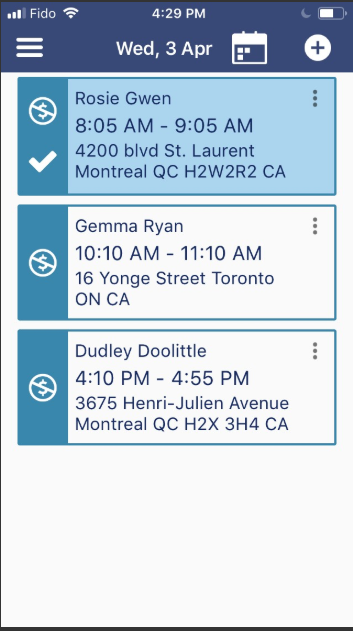
To begin, tap the Visit in your Schedule.
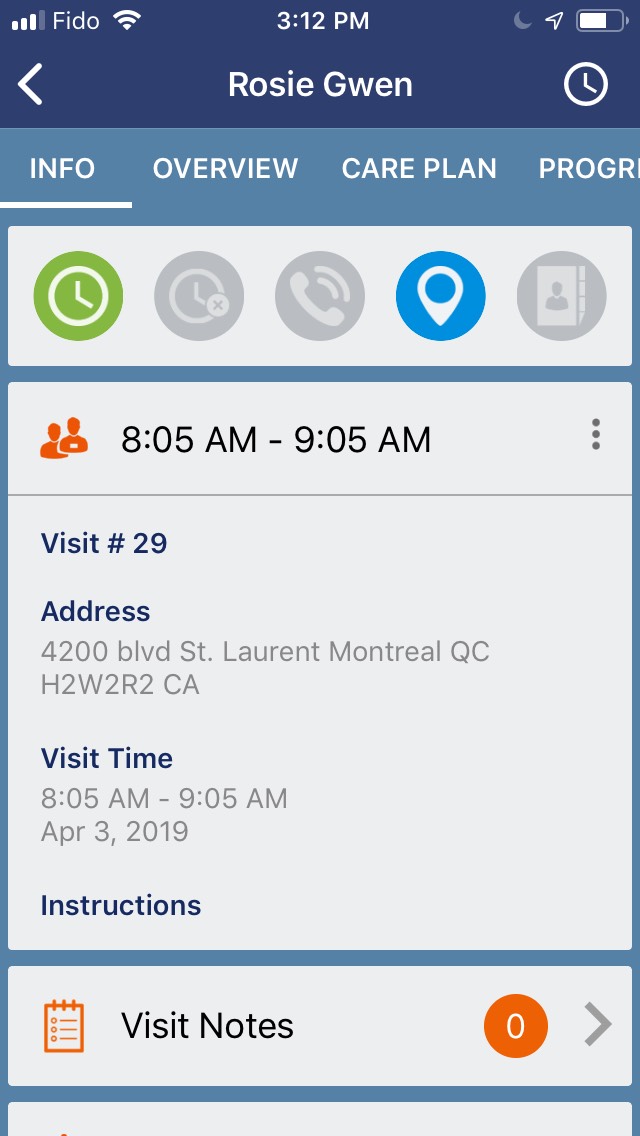
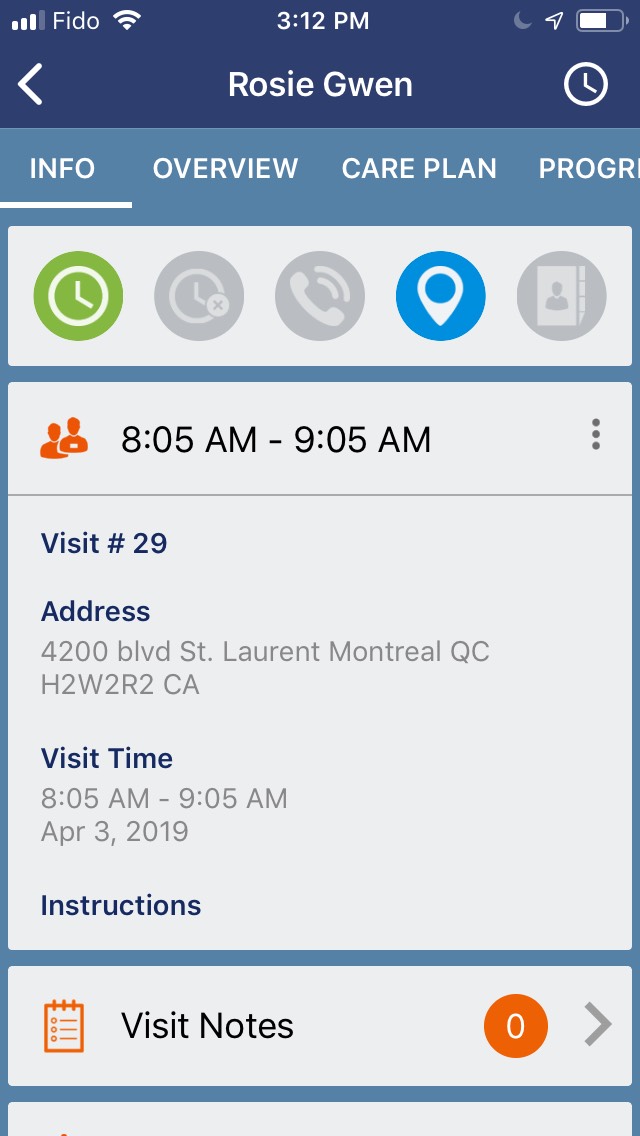
Then click the green clock icon under the Info tab.
Clocking out
Once you have completed your Visit, you need to clock out so that the duration of your Visit will be accurately recorded in the system.
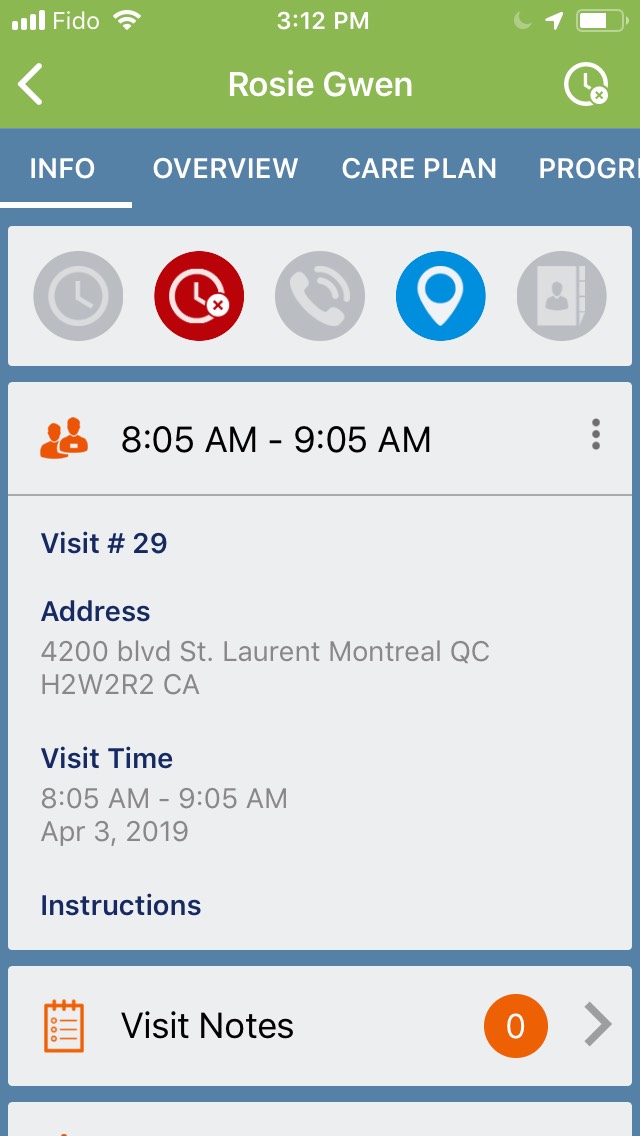
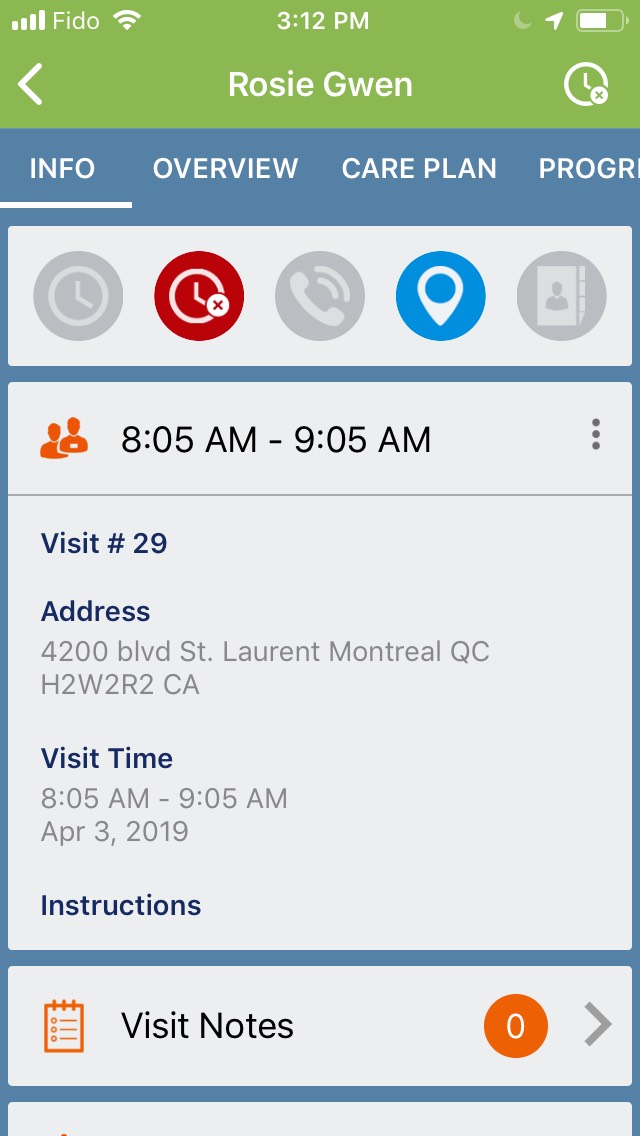
The easiest way to clock out is by tapping the red clock icon  under the Info tab. While you are clocked in, the title bar will be green. After tapping to clock out, the red clock icon will turn grey, and the title bar will turn back to blue.
Clocked in: Clocked out:
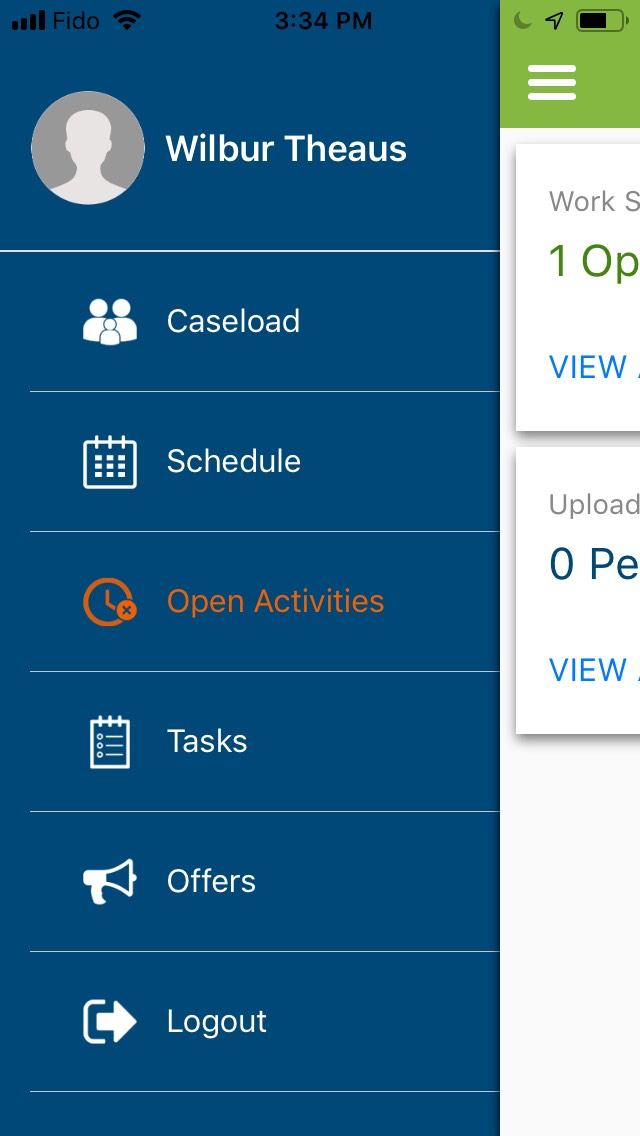
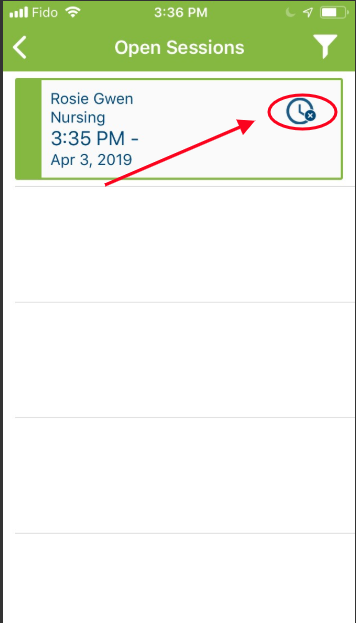
You can also clock out by going to the main menu icon  and tapping on your Open Activities.
From here, you can see whether you are currently clocked in to any Visits.
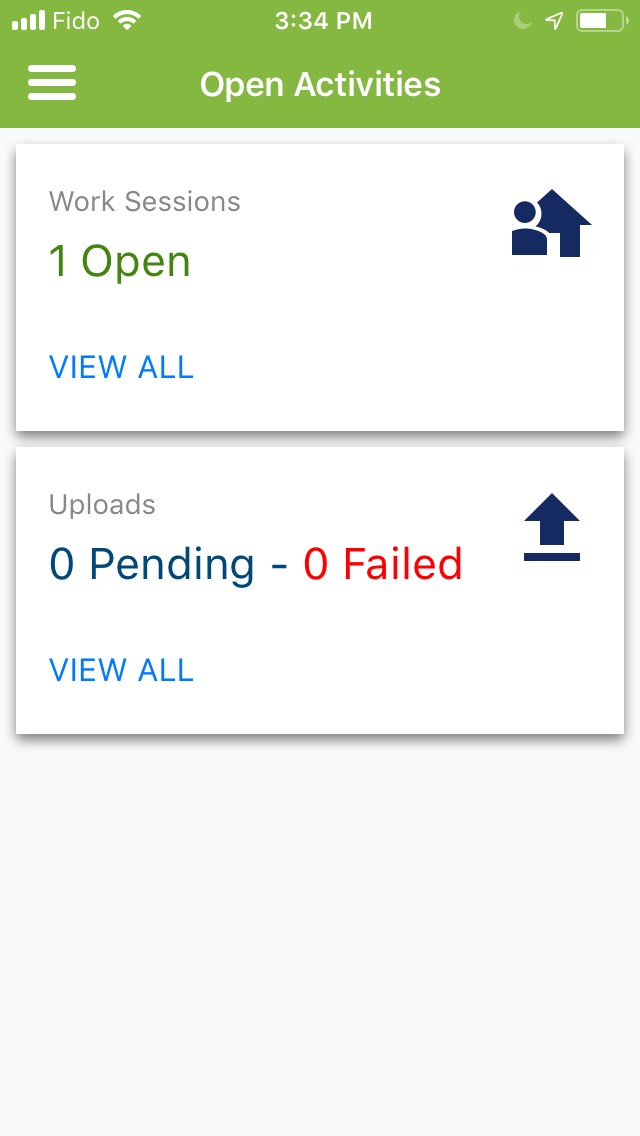
Click View for more details and then click the clock icon on the next screen to clock out.
The title bar will go back to blue when you have successfully clocked out.