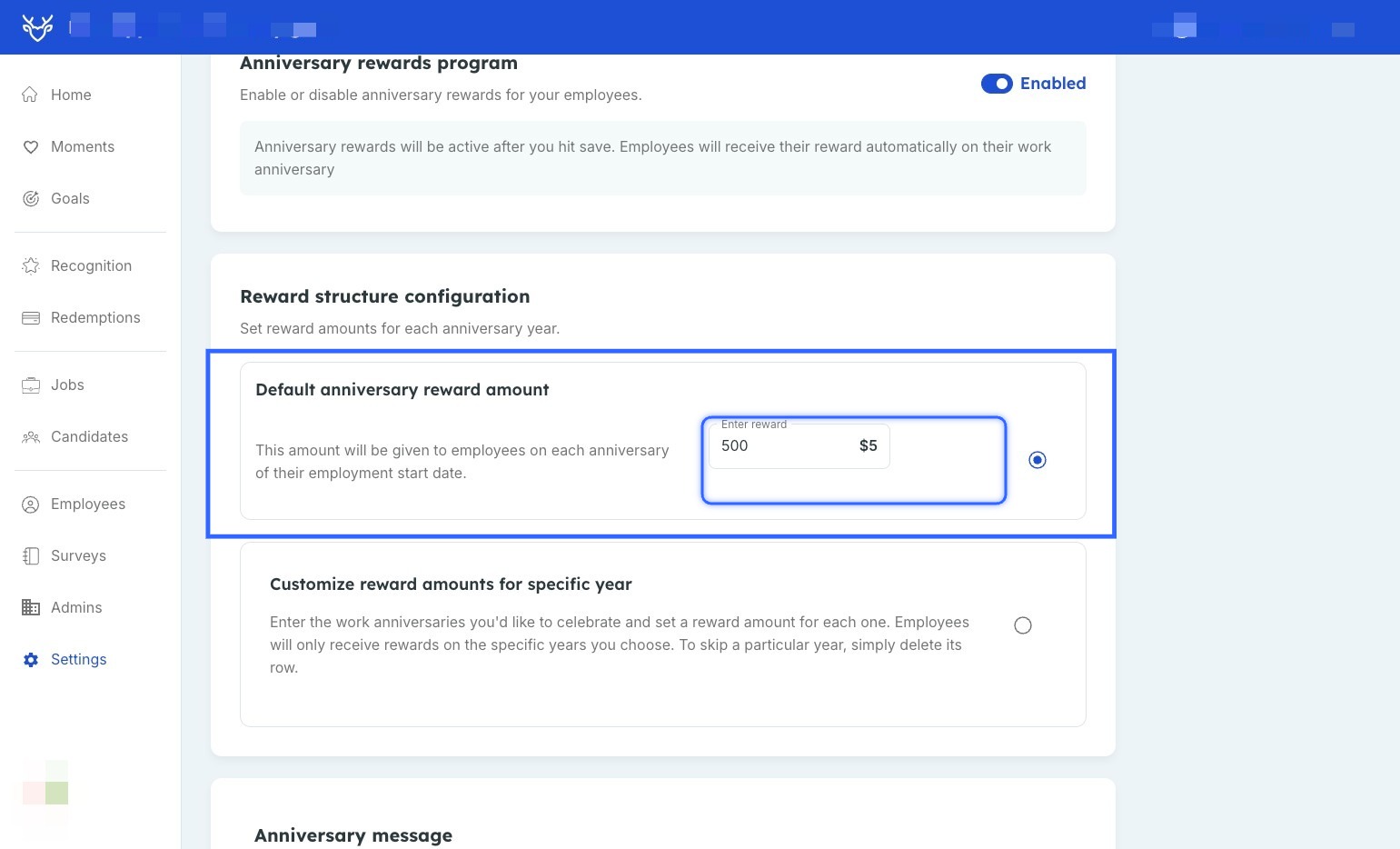
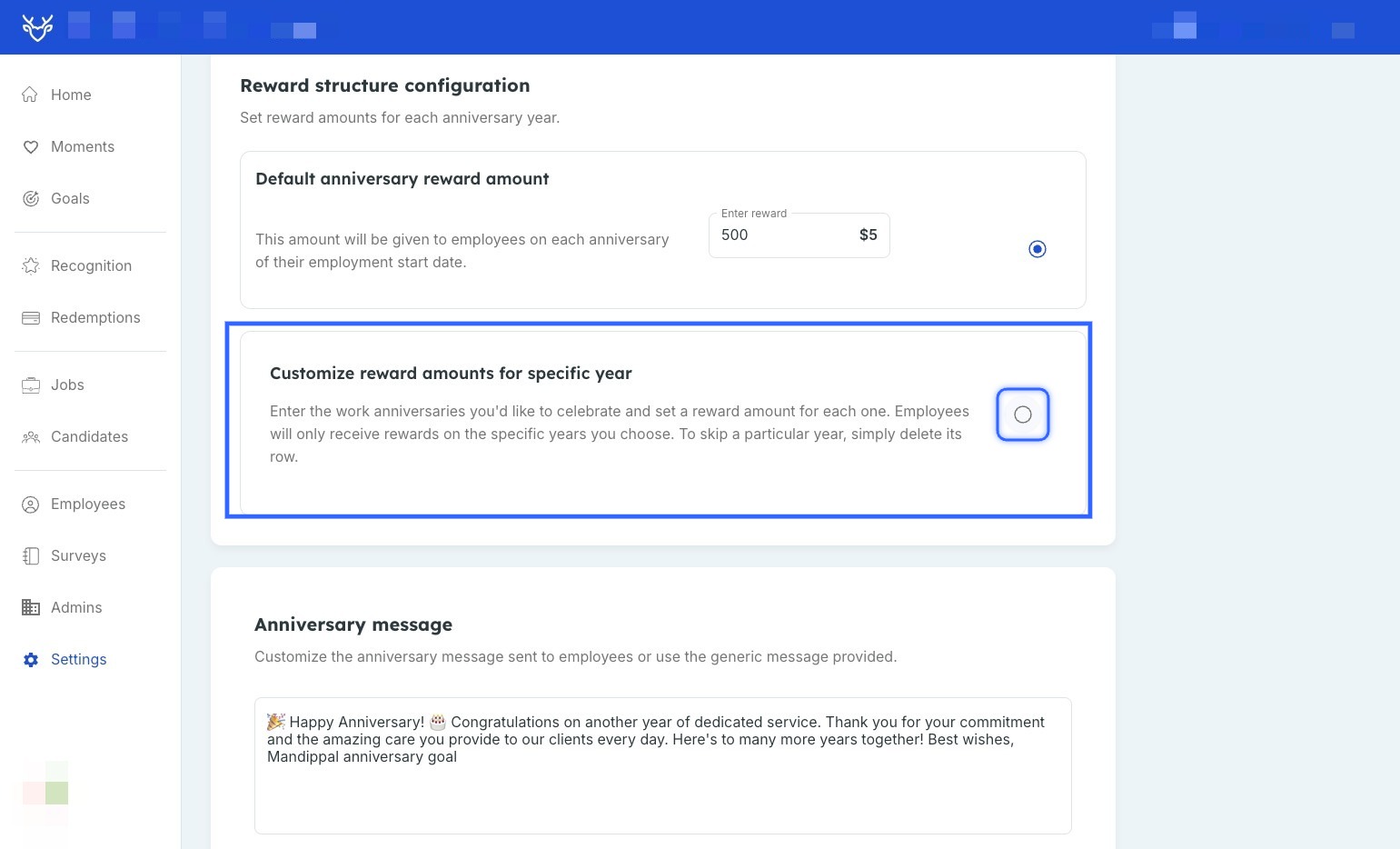
With Anniversary Rewards, you can either set a default anniversary reward amount, which will be given to employees on each anniversary of their employment start date, or you can customize the reward amounts for specific years.
Let’s get started!
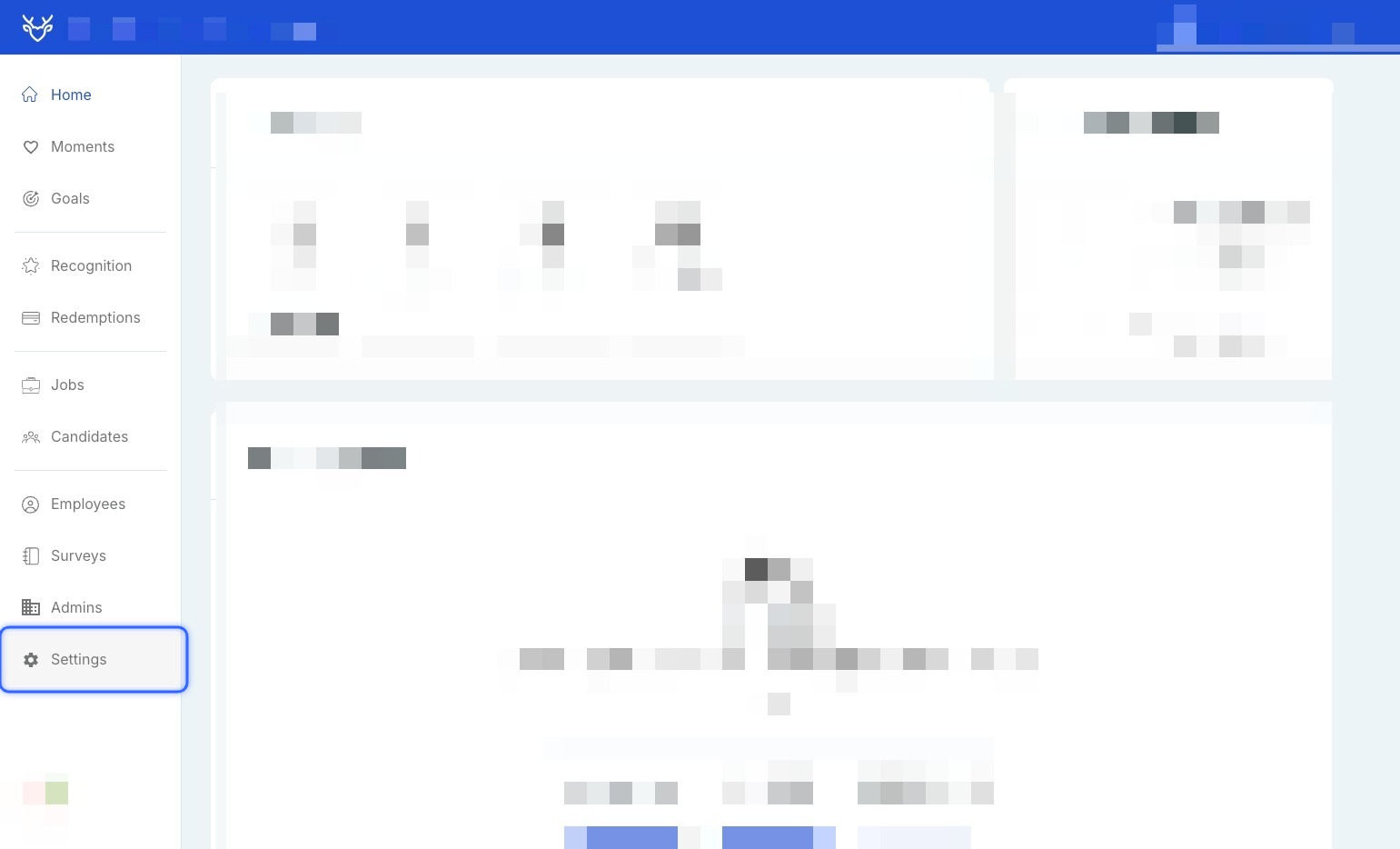
- To set this up, navigate to Settings
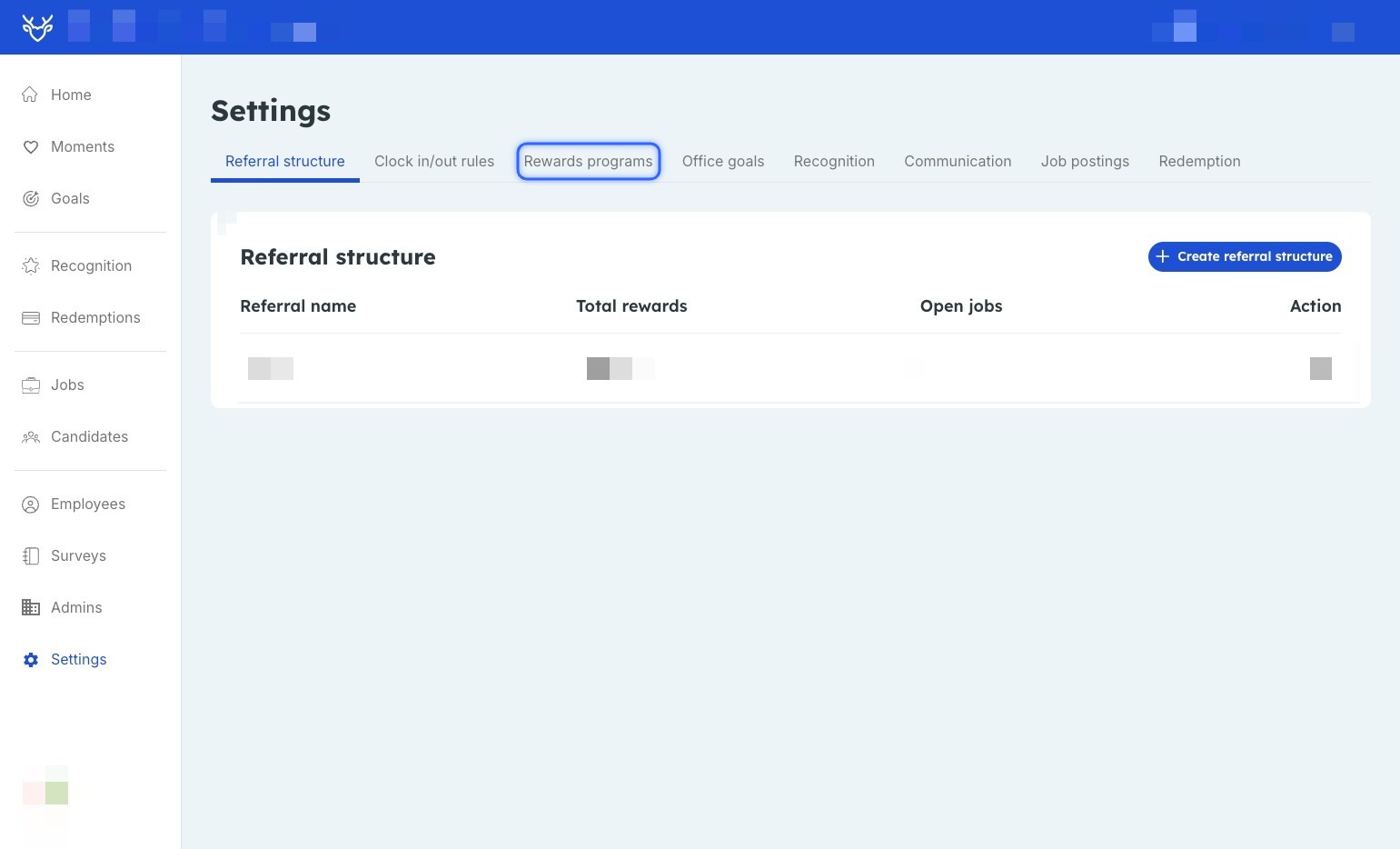
2. Click on Rewards Programs
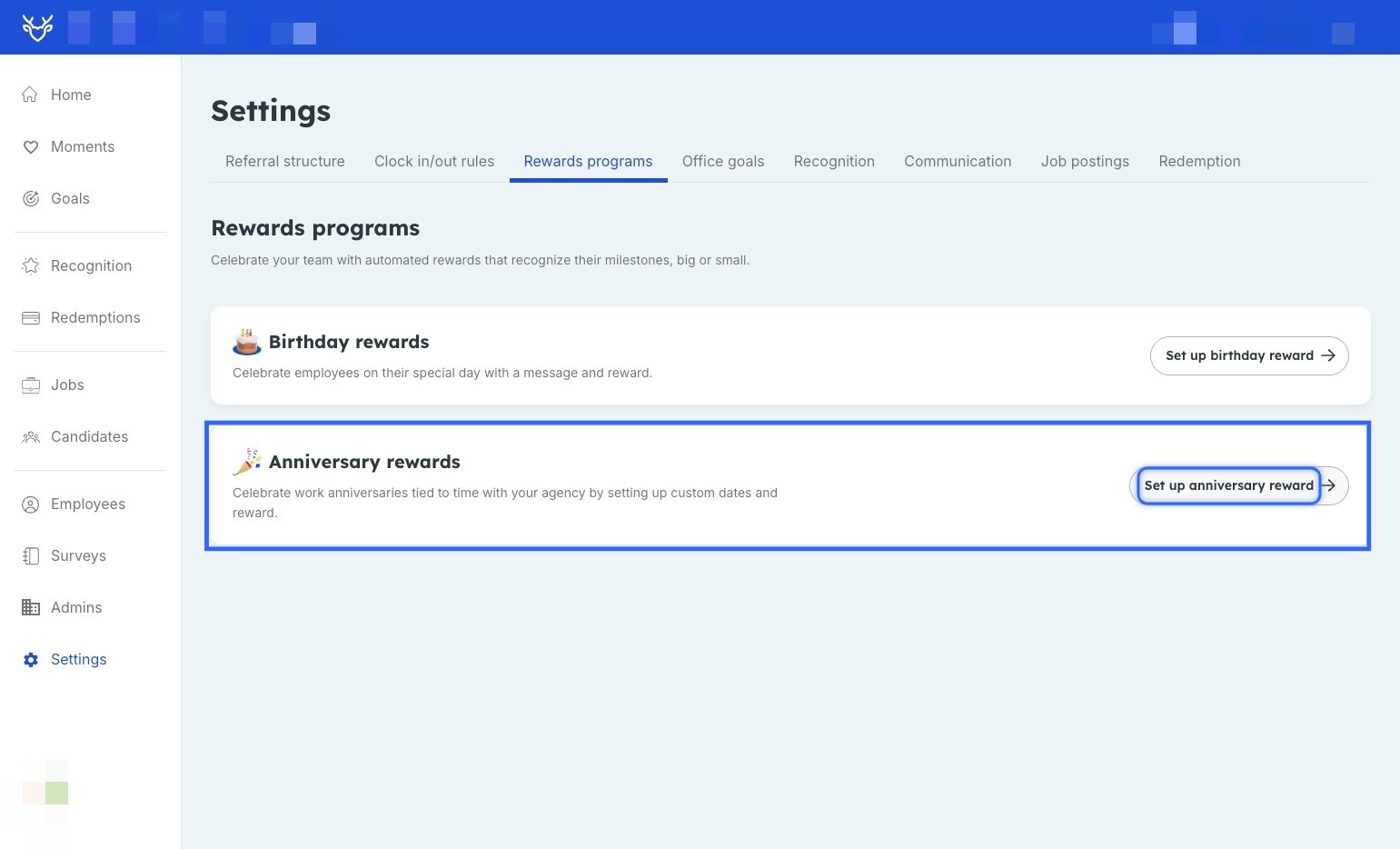
3. Click on “Set up anniversary rewards”
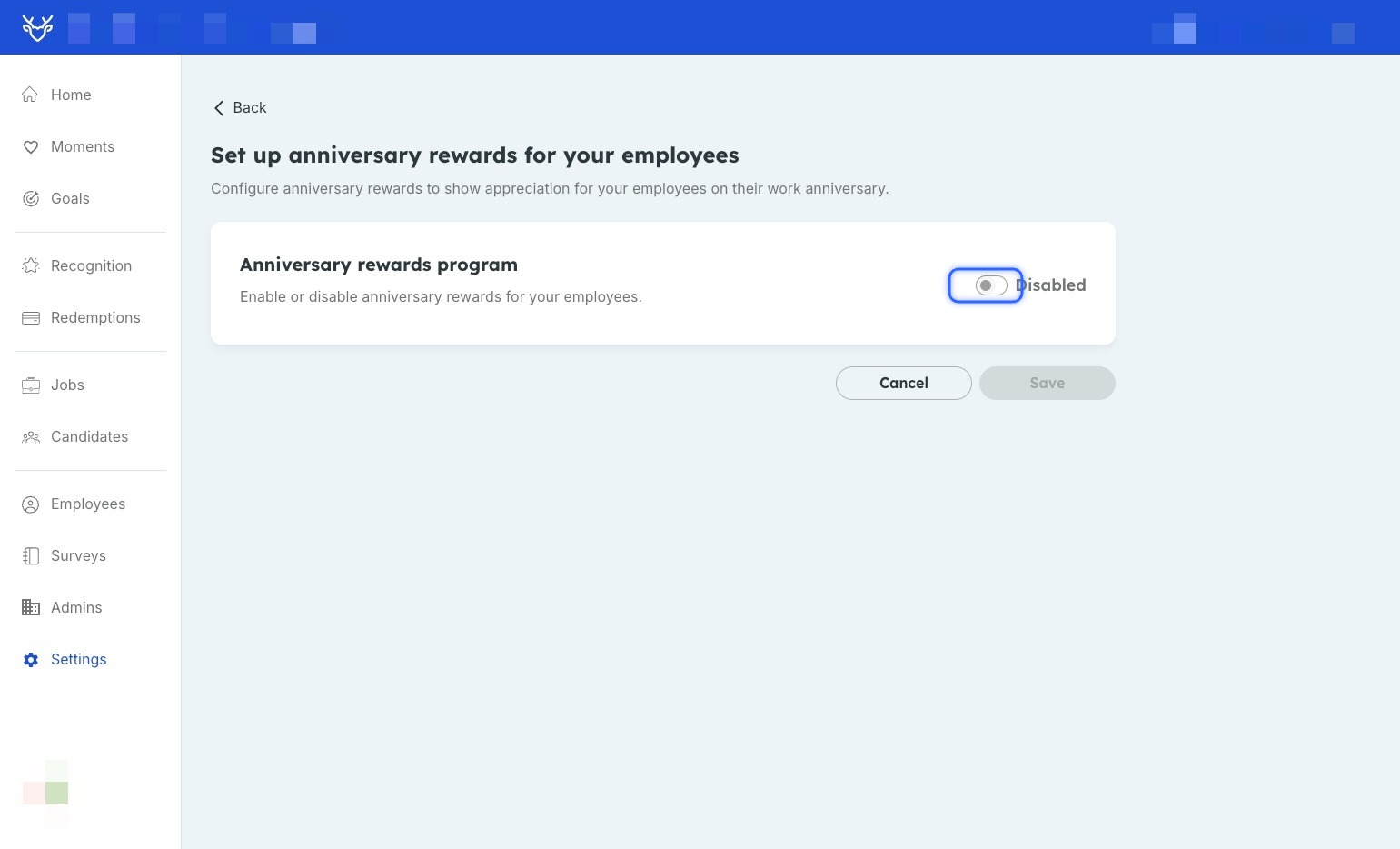
 4. Click the toggle to “Enabled”
- The first option is to enter your default Reward amount. This will be the amount that is paid out on each anniversary of their employment start date:
- Alternatively, you can customize the amounts for specific years where you can choose to create a different . Click into the next section:
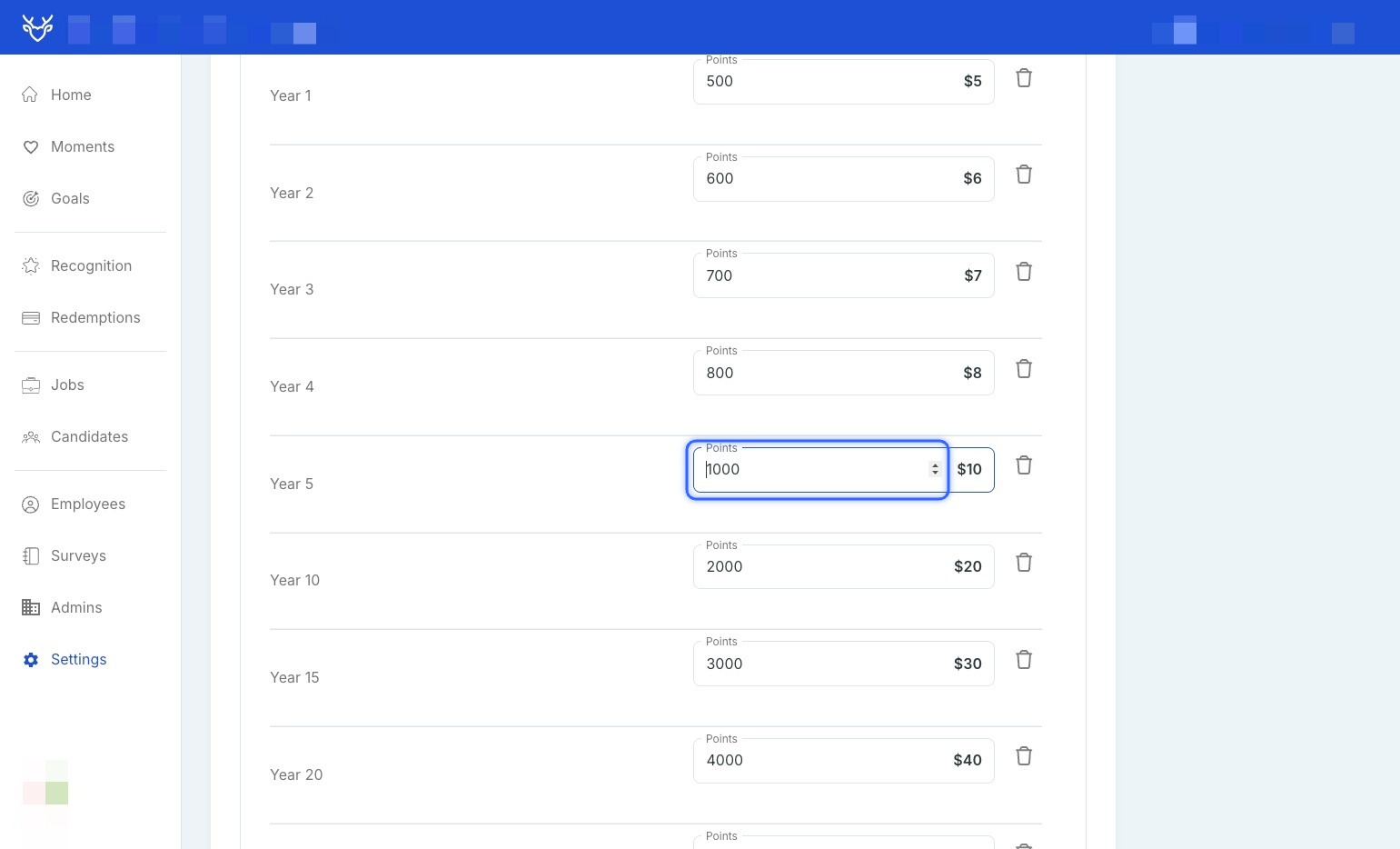
7. Input the amounts you would like to see:
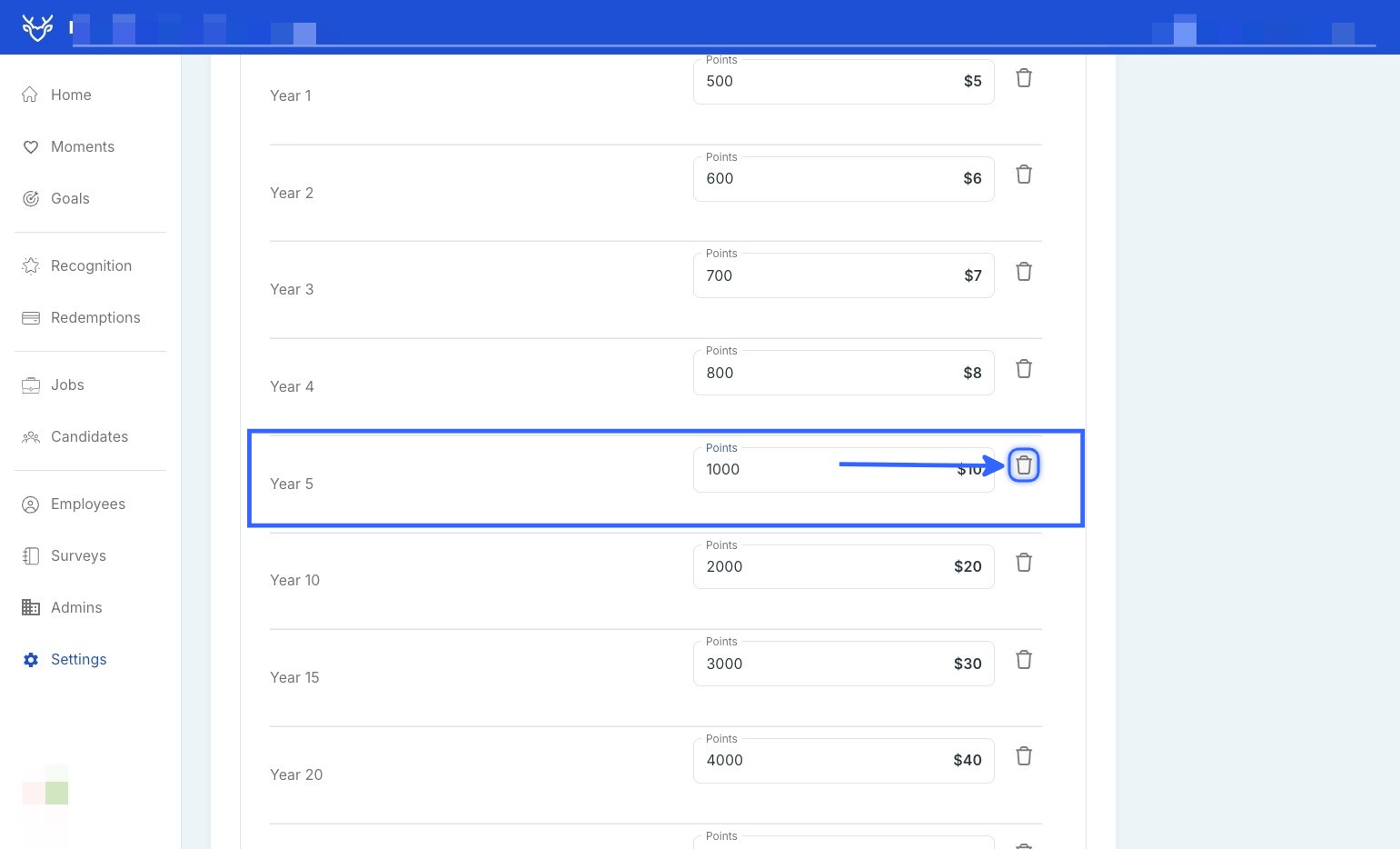
 8. You can also remove any option by clicking the trash can icon:
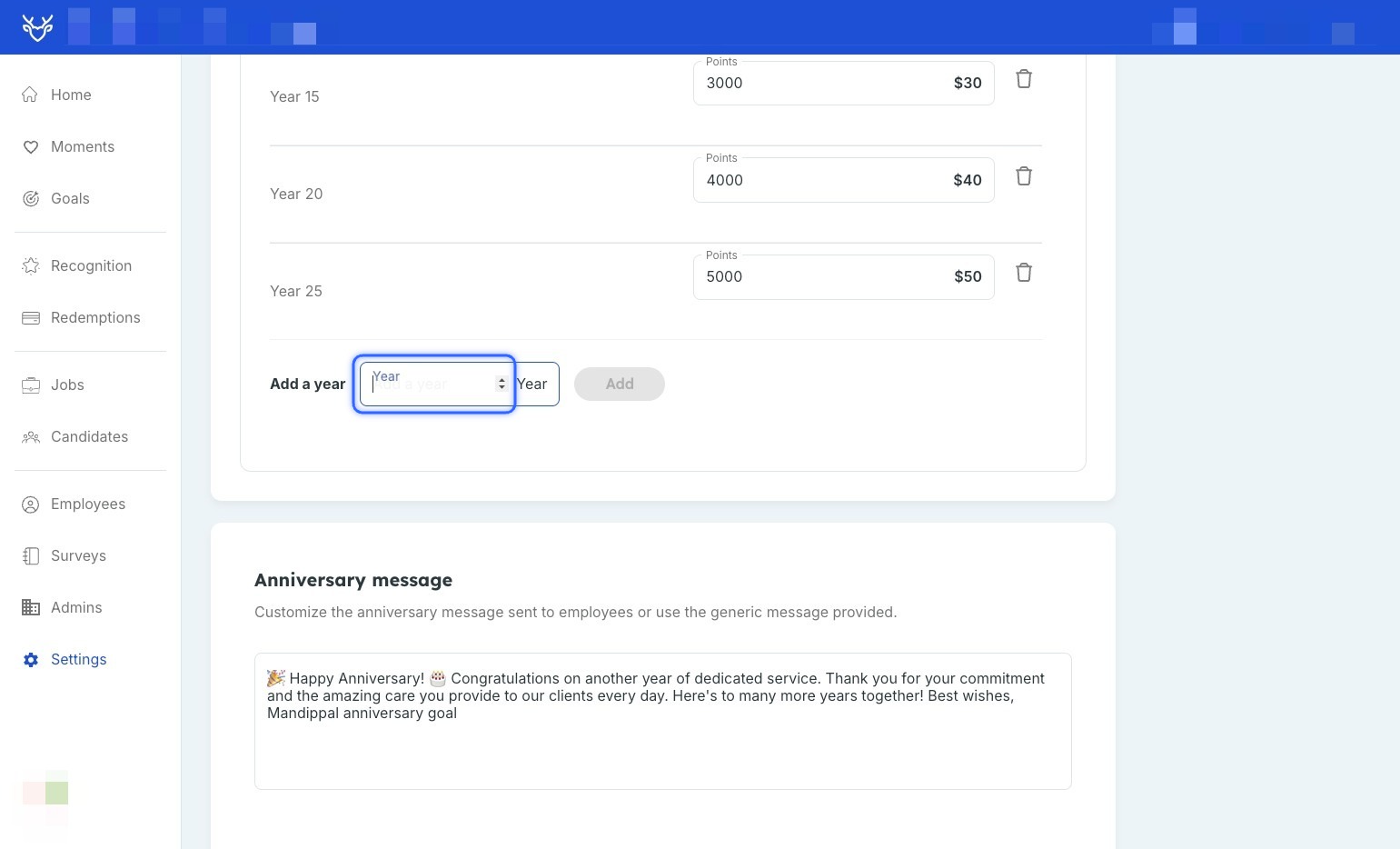
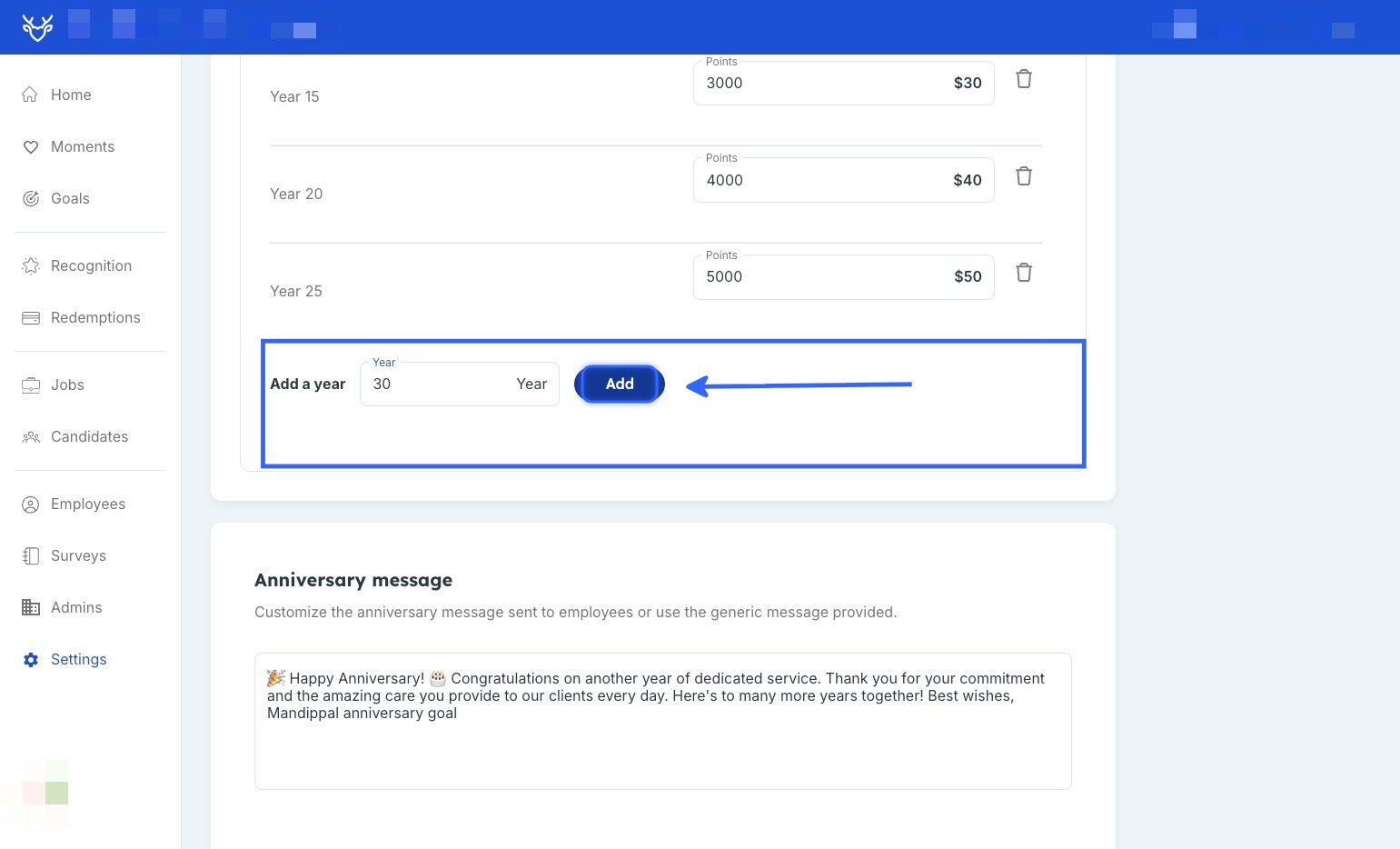
9. You can also add additional years:
10. Here, you can customize the anniversary message sent to employees or use the default message that is provided. When completed, hit Save: